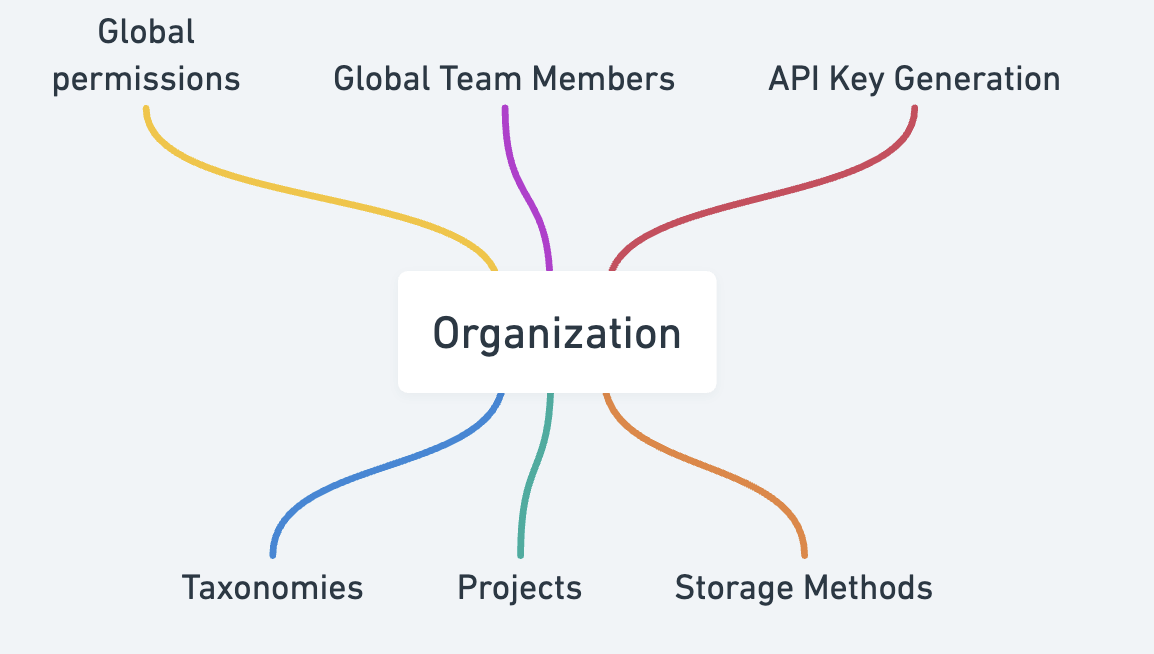
 In RedBrick AI, a **Project** is a workspace to which you can upload data and inside of which you perform annotation work within a pipeline defined by you.
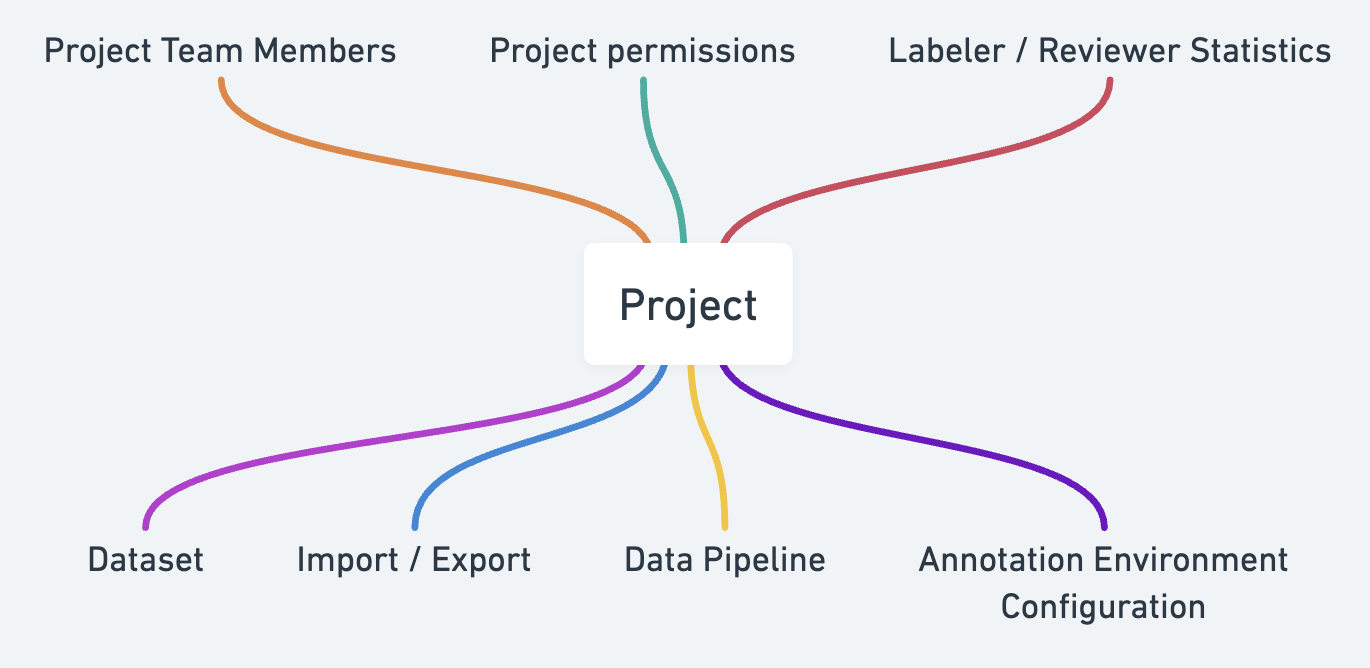 Within a Project, you can:
* upload images, volumes, and segmentation files;
* [assign work to your labelers and reviewers](https://docs.redbrickai.com/projects/task-assignment) on a Task level;
* perform and review annotation work;
* define [Project-level permissions](what-is-an-organization.md#project-level-roles) for labelers, reviewers, administrators, etc.;
* [invite specific members of your team](what-is-an-organization.md#inviting-members) and regulate their access to various Stages;
* view a range of statistics on the quality of your labelers' work, time spent;
* configure [custom toolkits](https://docs.redbrickai.com/annotation/layout-and-multiple-volumes/custom-hanging-protocol) and [Project-level settings](https://docs.redbrickai.com/projects/consensus-inter-annotator-agreement) specific to your use case;
* and much, much more!
While all of your team members have to be invited to your Organization in order for them to access RedBrick AI, you can easily [configure their permissions](what-is-an-organization.md#common-role-configurations) based on their Roles.
## Roles
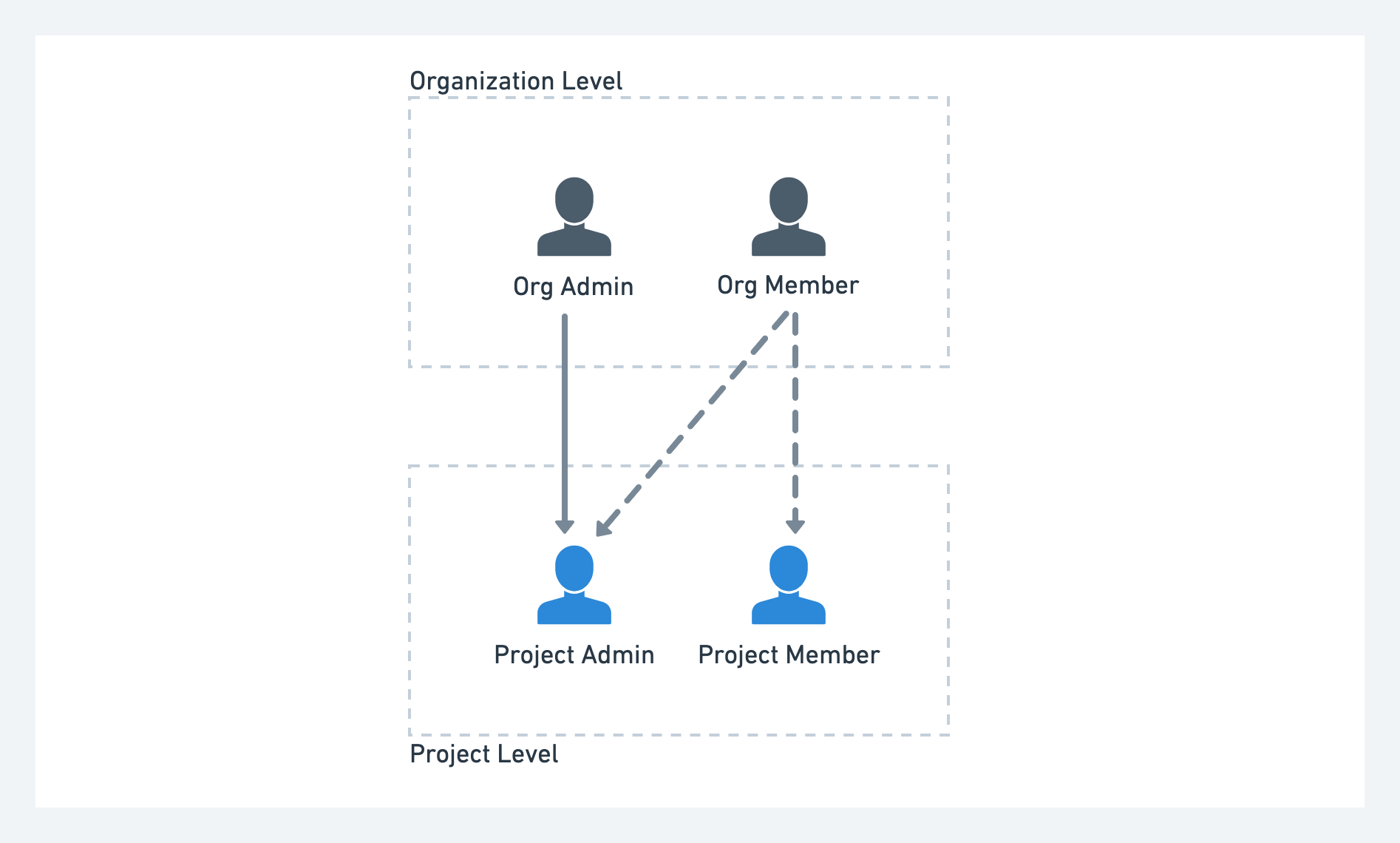
RedBrick AI offers role-based access control at two levels - the **Organization level** and the **Project level**. Each of these roles governs what actions a user can perform at the respective level.
Within a Project, you can:
* upload images, volumes, and segmentation files;
* [assign work to your labelers and reviewers](https://docs.redbrickai.com/projects/task-assignment) on a Task level;
* perform and review annotation work;
* define [Project-level permissions](what-is-an-organization.md#project-level-roles) for labelers, reviewers, administrators, etc.;
* [invite specific members of your team](what-is-an-organization.md#inviting-members) and regulate their access to various Stages;
* view a range of statistics on the quality of your labelers' work, time spent;
* configure [custom toolkits](https://docs.redbrickai.com/annotation/layout-and-multiple-volumes/custom-hanging-protocol) and [Project-level settings](https://docs.redbrickai.com/projects/consensus-inter-annotator-agreement) specific to your use case;
* and much, much more!
While all of your team members have to be invited to your Organization in order for them to access RedBrick AI, you can easily [configure their permissions](what-is-an-organization.md#common-role-configurations) based on their Roles.
## Roles
RedBrick AI offers role-based access control at two levels - the **Organization level** and the **Project level**. Each of these roles governs what actions a user can perform at the respective level.
 ### Organization-level Roles
While each Organization can only have a single **Org Owner**, there is no limit to the number of **Org Admins** and **Org Members** an Organization can have.
### Organization-level Roles
While each Organization can only have a single **Org Owner**, there is no limit to the number of **Org Admins** and **Org Members** an Organization can have.
| Role | Permissions |
|---|---|
| Org Owner |
Organization Level: Has access to all assets within an Organization; has the ability to create, edit, and delete assets, including the Organization itself.
Project Level: Org Owners are automatically added to all Projects as Project Admins (see below). |
| Org Admin |
Organization Level: Has access to all assets within an Organization; has the ability to create, edit, and delete assets, but not the Organization itself.
Project Level: Org Admins are automatically added to all Projects as Project Admins (see below). |
| Org Member |
Organization Level: cannot create or edit resources at the Organization level.
Project Level: Org Members are not automatically added to any Projects, and must be invited to a Project by a Project Admin (see below). |
| Role | Permissions |
|---|---|
| Project Admin | Can perform administrative actions at the Project level, i.e. uploading data, assigning Tasks, editing Project Settings, and viewing Project Overview statistics & other user statistics. |
| Project Member | Can only annotate/review data (i.e. Tasks) that are assigned to them. Cannot view the activity of any other users. |
| Project Manager | Can manage Tasks and user permissions. Cannot access Project settings. |
 ### Configuring Project-level Permissions
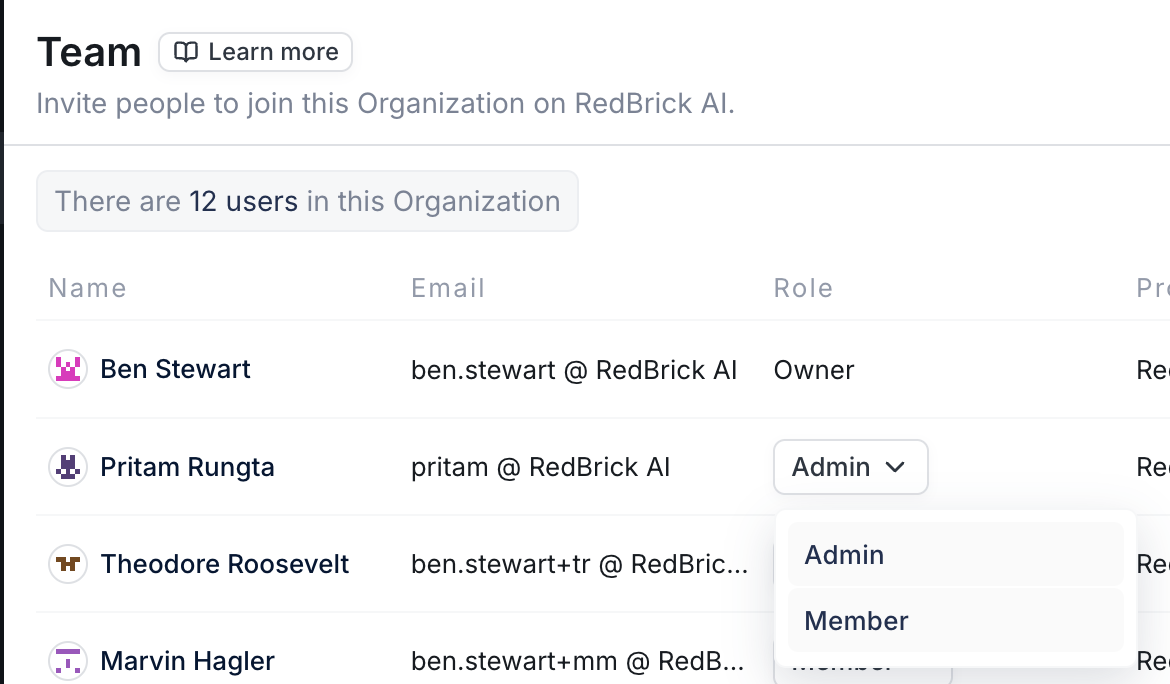
Project-level permissions are configured within a Project's Workforce tab.
Assigning a Project Member to a particular Stage restricts their access to **only those Tasks that are currently in that specific Stage**. This restriction applies to both manual and automatic task assignment.
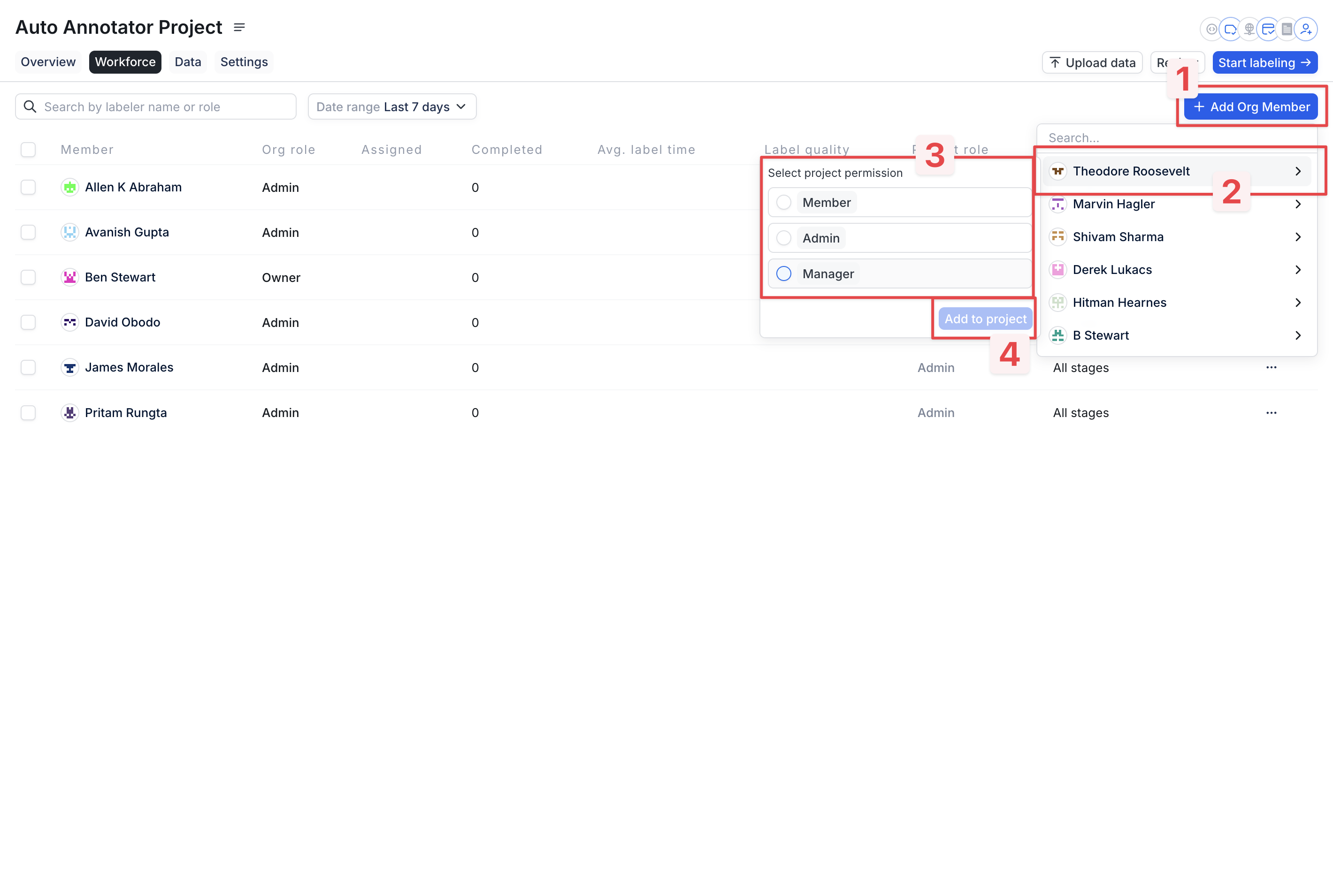
If you are an Org Admin, you can add Org Members with more limited permissions to a Project by:
* Navigating to the Project's Workforce tab;
* Clicking **Add Org Member** (Step 1 below);
* Selecting the Org Member you'd like to add (Step 2);
* Selecting the required permissions level (Step 3);
* Clicking **Add to Project** (Step 4);
### Configuring Project-level Permissions
Project-level permissions are configured within a Project's Workforce tab.
Assigning a Project Member to a particular Stage restricts their access to **only those Tasks that are currently in that specific Stage**. This restriction applies to both manual and automatic task assignment.
If you are an Org Admin, you can add Org Members with more limited permissions to a Project by:
* Navigating to the Project's Workforce tab;
* Clicking **Add Org Member** (Step 1 below);
* Selecting the Org Member you'd like to add (Step 2);
* Selecting the required permissions level (Step 3);
* Clicking **Add to Project** (Step 4);
 ## Designating and Changing an Organization Owner
By default, the Org Owner for all new RedBrick Organizations is [support@redbrickai.com](mailto:support@redbrickai.com).
If you would like to change your Org Owner, please reach out to our support team at [support@redbrickai.com](mailto:support@redbrickai.com).
## Designating and Changing an Organization Owner
By default, the Org Owner for all new RedBrick Organizations is [support@redbrickai.com](mailto:support@redbrickai.com).
If you would like to change your Org Owner, please reach out to our support team at [support@redbrickai.com](mailto:support@redbrickai.com).